






Configuring Panda Titanium
When using SPAMfighter with Panda Titanium 2005, you have to approve SPAMfighter in your firewall. You can do this by using the following steps:
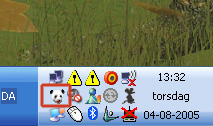
1. Open Panda by clicking on the Panda Logo in your sys-tray in your right corner. (Note: your sys-tray might look different than the one shown below)
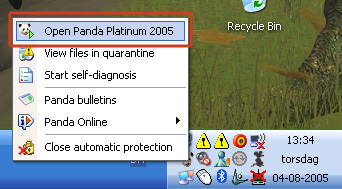
2. Click "Open Panda Titanium Antivirus 2005".
3. Click "Settings" in the menu.
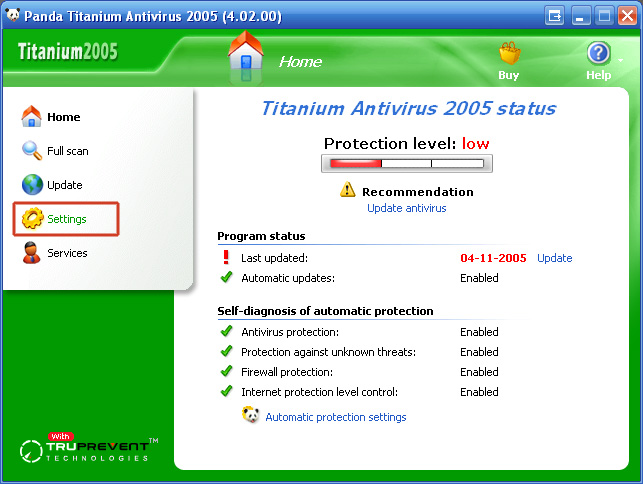
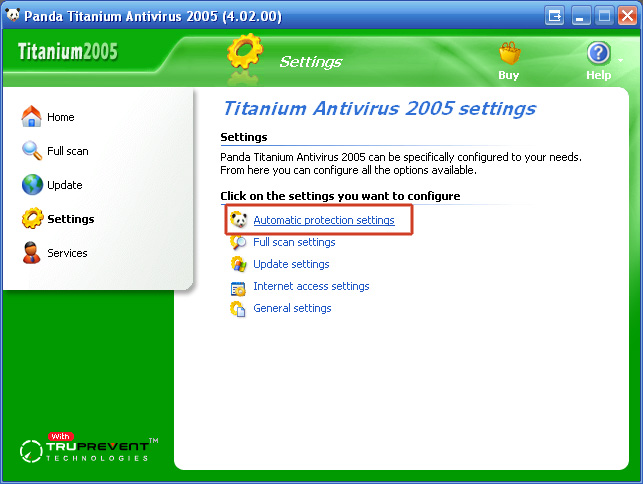
4. Click "Automatic protection settings".
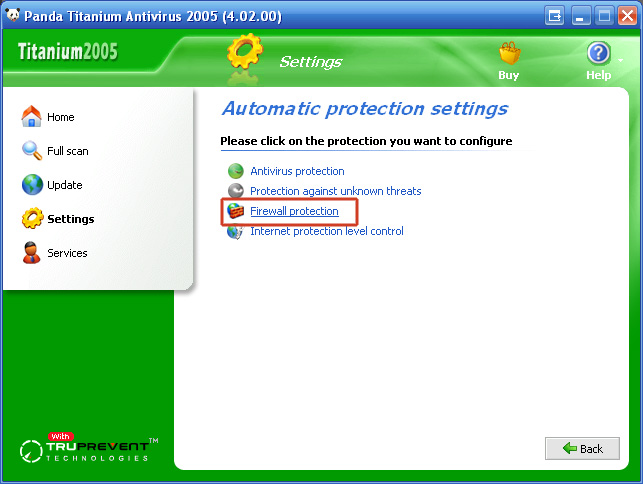
5. Clik "Firewall protection".
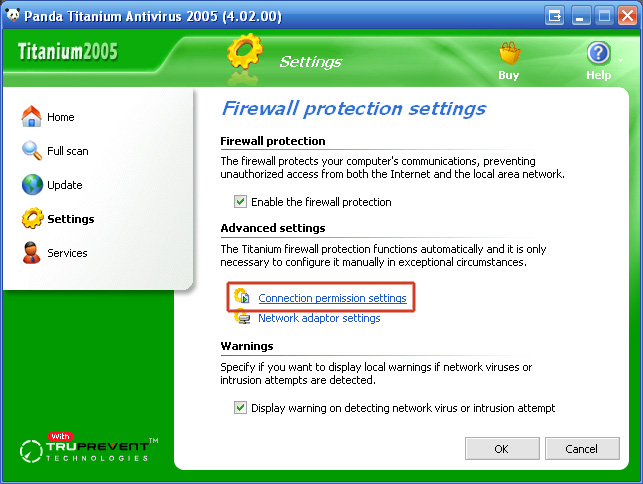
6. Clik "Connection permission settings".
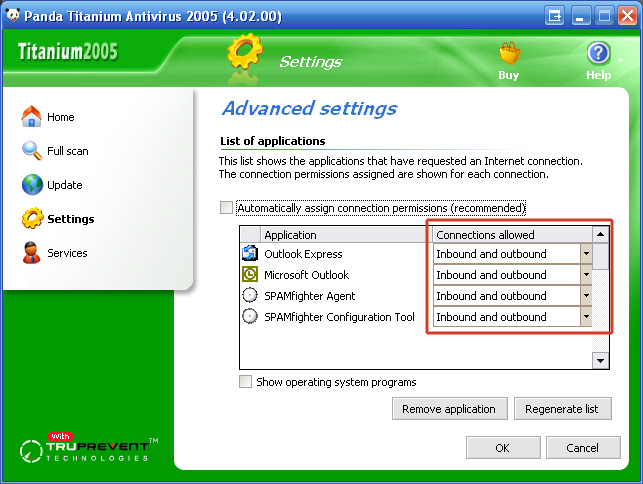
7. Scroll down the "List of applications" till you find the following programs:
"Microsoft Outlook"
"Outlook Express"
"SPAMfighter Agent"
"SPAMfighter Configuration Tool"
9. Click "OK" and close the configuration window.
You have now configured Panda Titanium Antivirus 2005 to allow SPAMfighter to communicate with our anti-spam server.